At some point in every WordPress journey, there comes a moment when you realize you have made a mistake. Not a small mistake, like forgetting to clear cache. A career-defining mistake. Mine was uploading every piece of artwork in glorious, retina-melting, print-ready resolution directly into the WordPress Media Library and then cheerfully publishing away like future-me wasn’t going to have to pay for it.
Future-me is now staring down 1,848 images.
If you have ever clicked “Bulk Optimize,” watched the spinner spin for twenty minutes, been unceremoniously dumped back onto page one of the Media Library, and whispered “why” to your monitor, congratulations. You are my people.
Let’s talk about how to do this properly, without clicking yourself into an early retirement.
Why the Media Library Feels Like It Is Actively Messing With You
The WordPress Media Library was not designed for you to calmly optimize thousands of images in one sitting. It was designed for you to upload a few images at a time and feel productive.
When you select 80 images on page 23 and hit optimize, WordPress helpfully says, “Great job!” and then immediately sends you back to page one like nothing ever happened. This is not a bug. This is optimism.
Selecting hundreds of images at once feels bold until the server times out, only some images optimize, and you are left wondering which ones worked and which ones are still quietly ruining your page speed.
The takeaway here is simple: bulk actions exist, but they are extremely literal and have the patience of a caffeinated squirrel.
The One Setting That Makes Everything Less Awful
Before touching another image, go straight to your image optimization plugin settings. If you are using Smush, ShortPixel, or Imagify, they all share one life-saving feature:
Background optimization.
Turn it on.
Background optimization lets WordPress quietly chew through images without making you sit there clicking checkboxes like a bored accountant. Once enabled, you can leave the admin screen, open another tab, or question your life choices while optimization continues behind the scenes.
This single toggle eliminates about 70 percent of the pain.
Stop Using the Media Grid View (Seriously)
The grid view looks nice. It also makes bulk operations harder than they need to be.
Switch the Media Library to List View.
List View gives you:
- Predictable pagination
- Real checkboxes that stay checked
- A visible sense of progress instead of existential dread
This turns the process from “random chaos” into “still annoying, but survivable.”
Batch Size Matters More Than You Think
Optimizing hundreds of images at once feels efficient. It is not.
Most shared and mid-range hosting environments start getting cranky somewhere between 50 and 150 images per batch. Go beyond that and you risk partial completion, timeouts, or plugins quietly giving up without telling you.
Smaller batches finish reliably. Reliability beats speed every single time when the alternative is doing the same work twice.
Let Cron Jobs Do the Boring Work
If your plugin supports scheduled optimization, use it. This hands the job to WordPress cron tasks, which are far better suited to repetitive background work than your browser tab is.
You can log in later, see steady progress, and avoid watching progress bars that lie to you.
This feels less like punishment and more like delegation.
The Nuclear Option: Regenerate and Optimize Together
If your images were uploaded at full resolution and WordPress generated massive intermediate sizes, you can clean this up in one sweep using Regenerate Thumbnails.
Regenerating thumbnails:
- Removes unused image sizes
- Recreates only what your theme actually needs
- Gives your optimizer fewer files to process
Do this once, then run optimization. It is deeply satisfying in a “spring cleaning for pixels” kind of way.
If You Are Doing This Regularly, You Are Doing It Wrong
Here is the lesson I wish I had learned earlier:
Bulk optimization should be a one-time event.
Once everything is clean, enable automatic optimization on upload and never think about this again. Your future self will thank you quietly every time a page loads fast.
Final Thoughts Before You Click Anything Else
If WordPress sends you back to page one again, it is not personal. It is just very confident that page one is where you belong.
Turn on background optimization. Use List View. Keep batches reasonable. Let cron jobs work while you do literally anything more enjoyable.
If this saved you even one rage-click, follow along for more hard-earned lessons and leave a comment with your own WordPress war story. Misery loves company, and optimizers love solidarity.
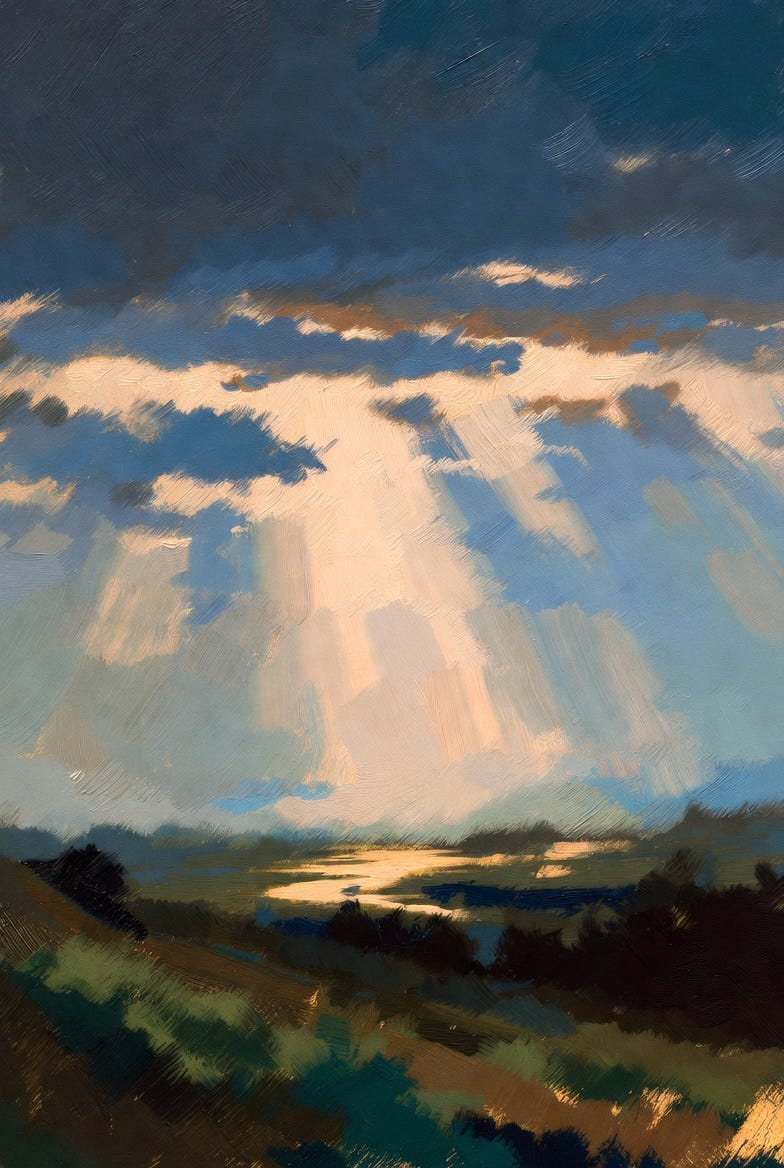
Art Prompt (Romanticism): A dramatic landscape bathed in shifting twilight, where a vast sky dominates the scene and light breaks through heavy, rolling clouds. The foreground is quiet and grounded, while the distance dissolves into mist and atmosphere. Brushwork feels expressive yet controlled, with soft transitions between shadow and glow. Colors lean toward deep blues, muted greens, and warm amber highlights that suggest emotional weight rather than literal realism. The mood is contemplative and awe-filled, capturing nature as something immense, humbling, and quietly poetic.
Video Prompt: The scene slowly breathes into motion as clouds drift across the sky and light subtly changes from cool dusk to warm glow. Gentle camera movement adds depth, with mist rolling forward and highlights shimmering across the landscape. Motion is smooth and hypnotic, emphasizing atmosphere, scale, and emotional resonance without abrupt cuts.
Song Suggestions:
- “Heaven, Iowa” — Fall Out Boy
- “The Record Player Song” — Daisy the Great
Follow for more experiments, lessons learned the hard way, and creative chaos. Drop a comment if you have ever tried to optimize hundreds of images and questioned all your life choices.